Quick Guide
This guide will walk you through creating a simple presentation with Beanim. By the end, you’ll understand how to use templates, define slide objects, and create an animated presentation.
Available Templates
Beanim comes equipped with eight different templates to homogenise the look of your slides:
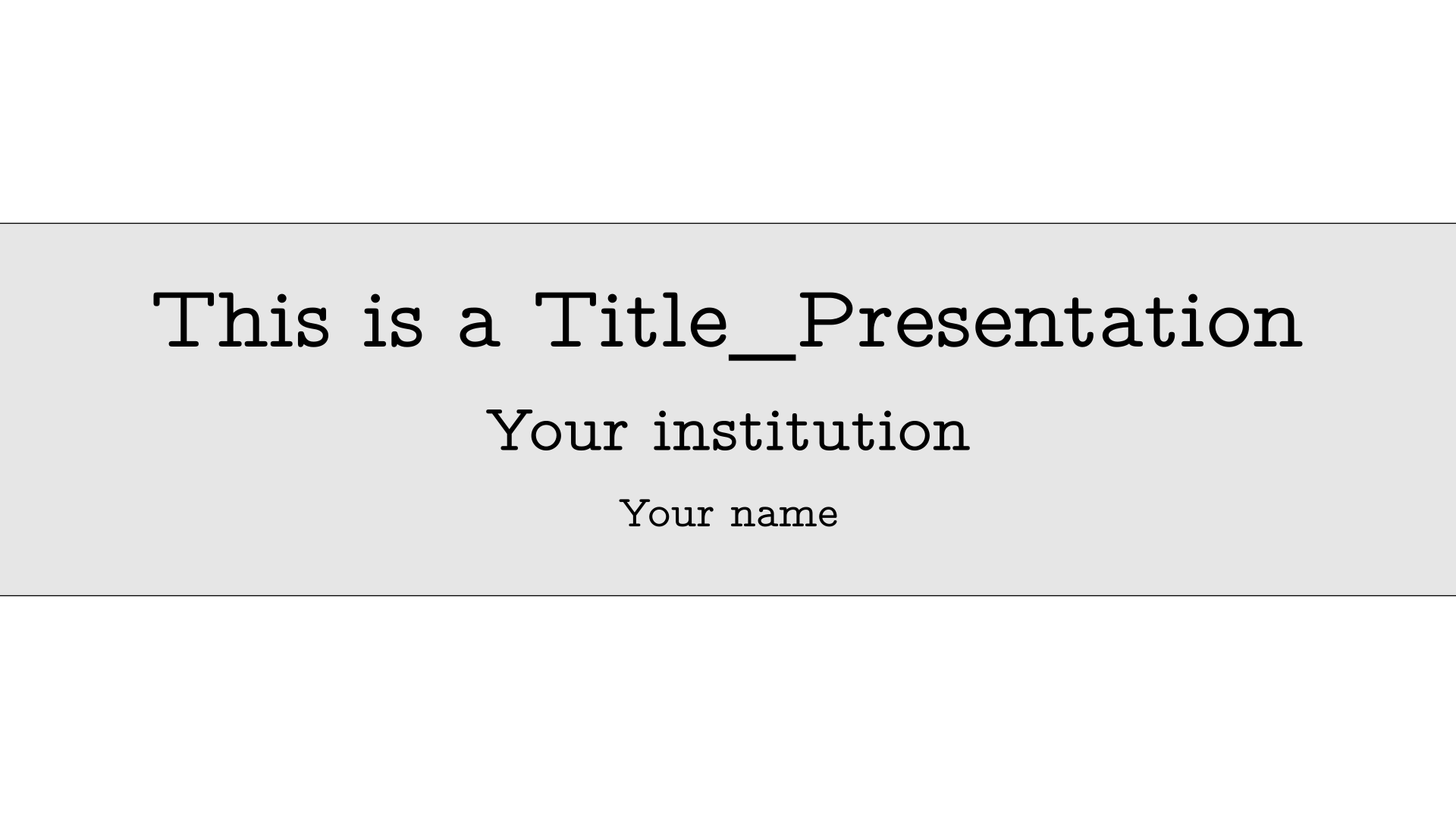
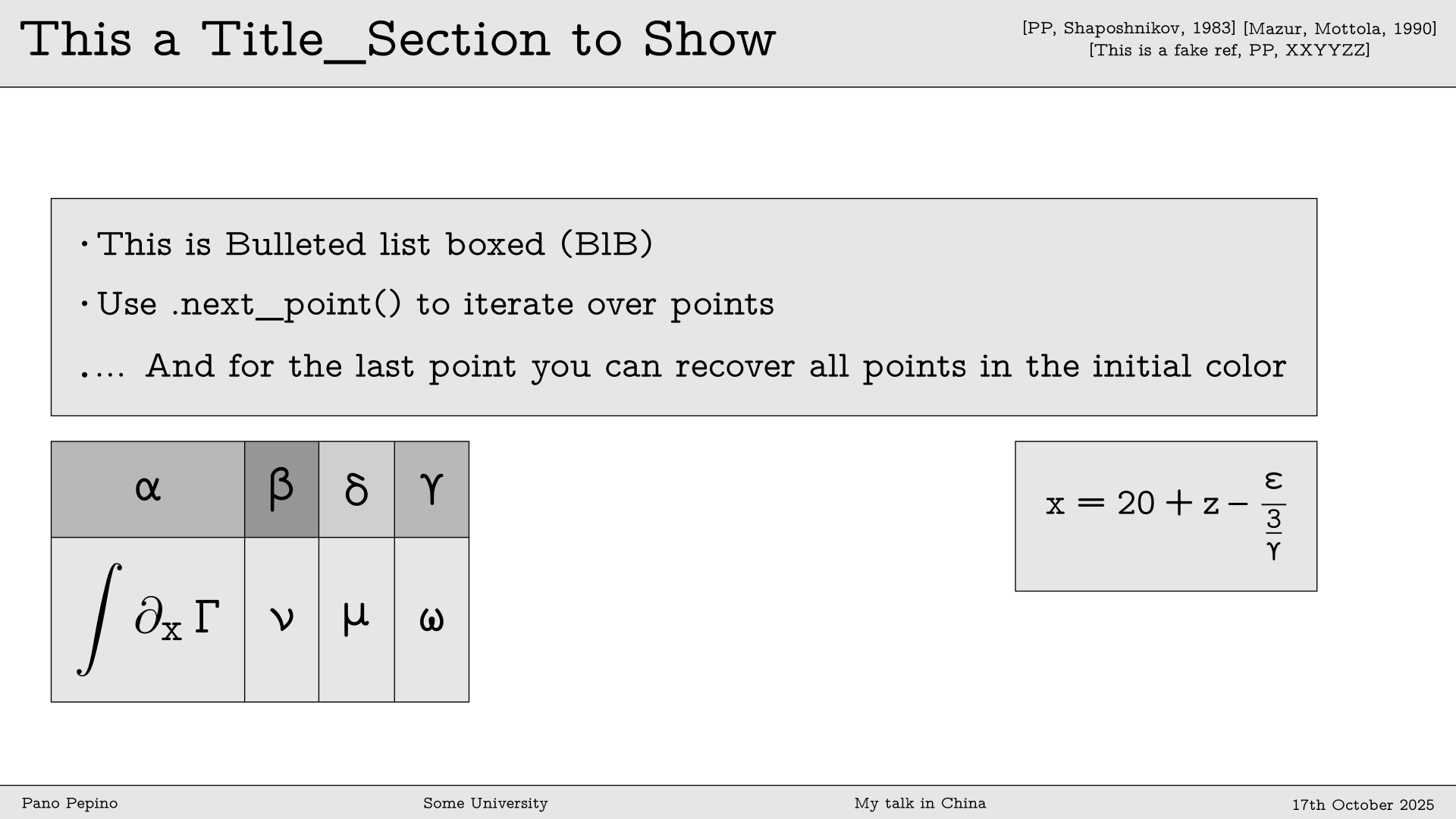
🎨 default_template - Clean and minimalist design
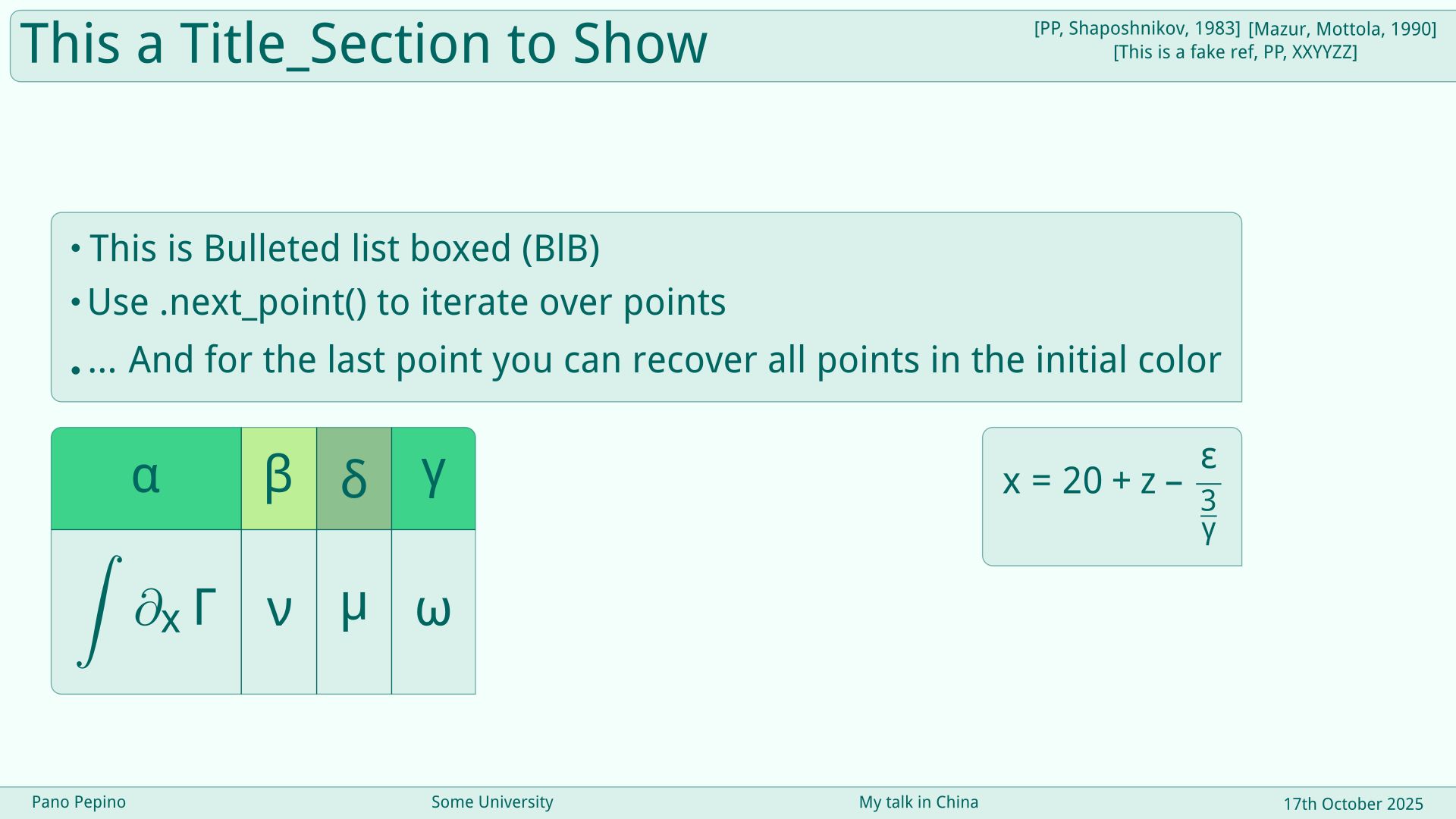
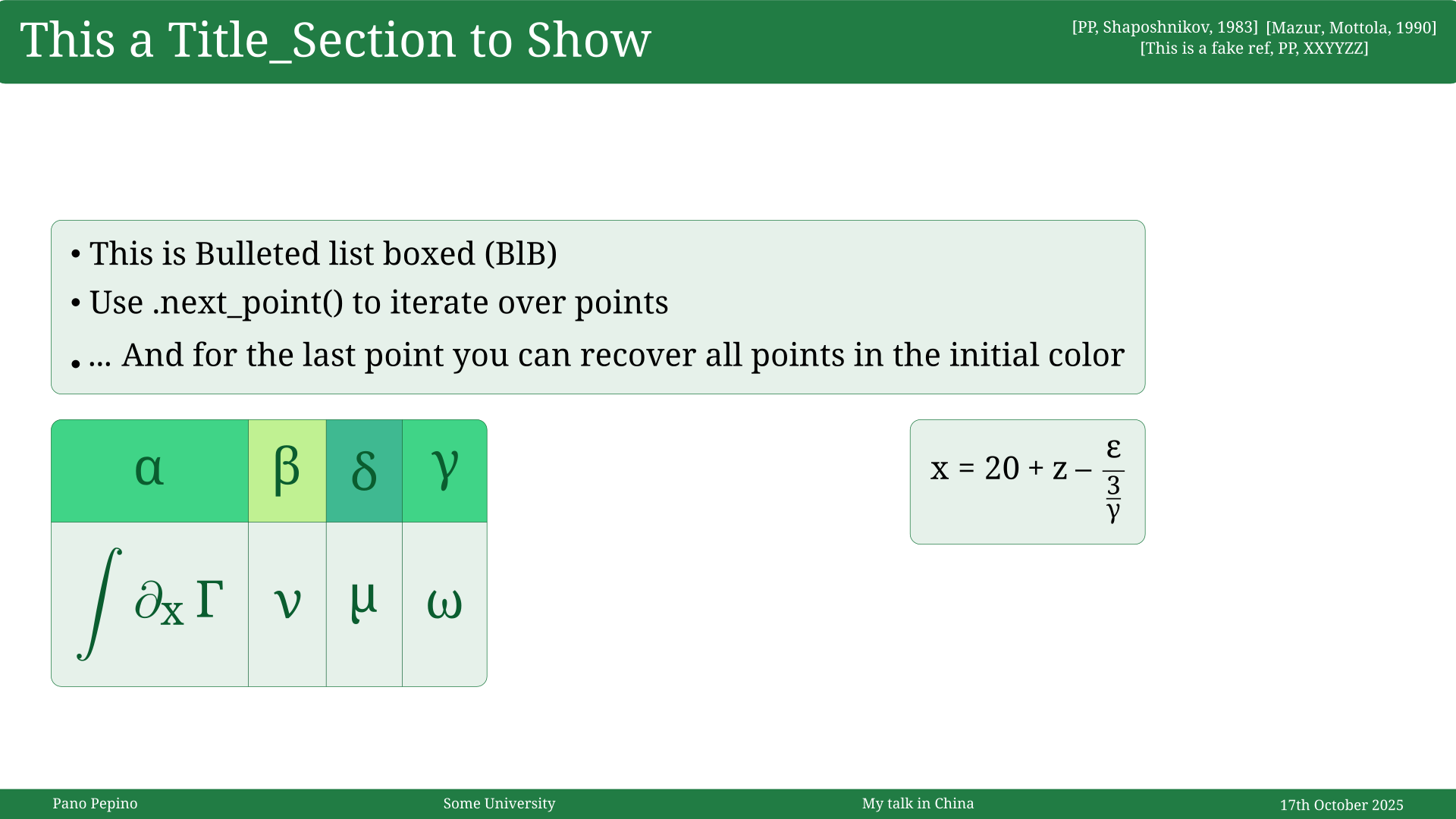
🌿 green_mint - Fresh mint green theme
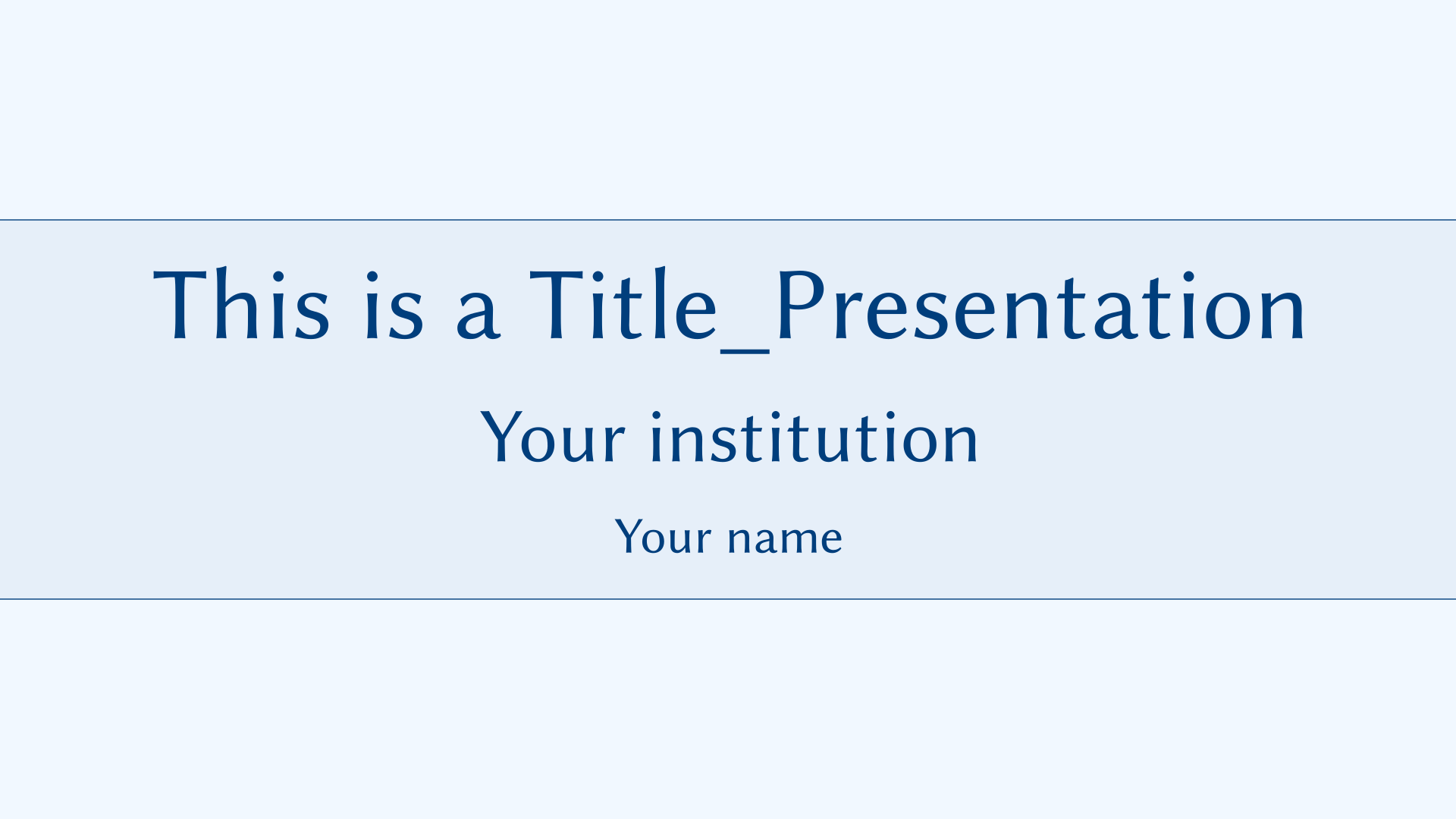
🧊 blue_ice - Cool blue color scheme
🍂 red_autumn - Warm autumn colors
🔵 beamer_blue - Classic Beamer style in blue
🟢 beamer_green - Classic Beamer style in green
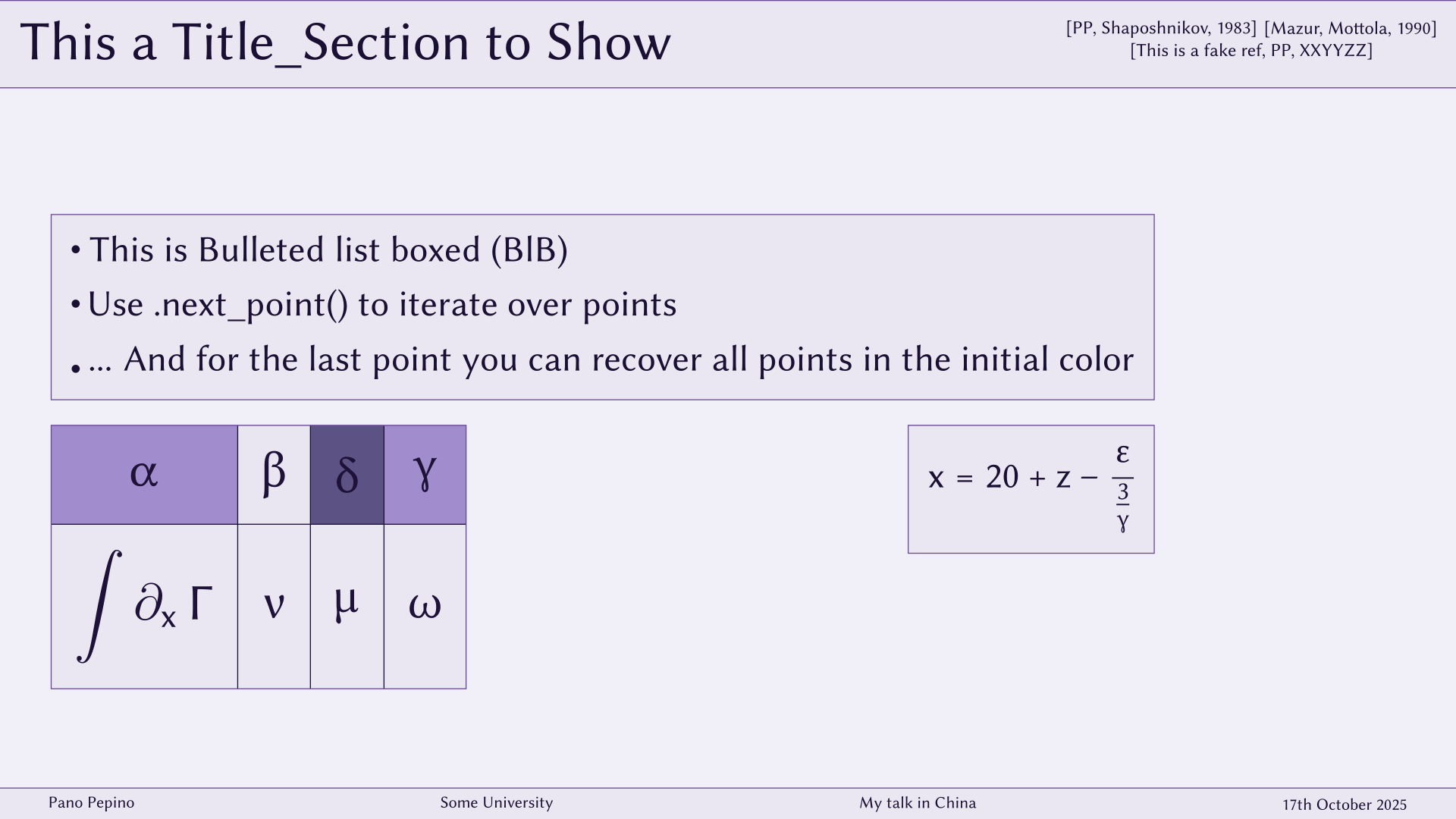
🌌 quantum_dusk - Elegant purple-lavender theme
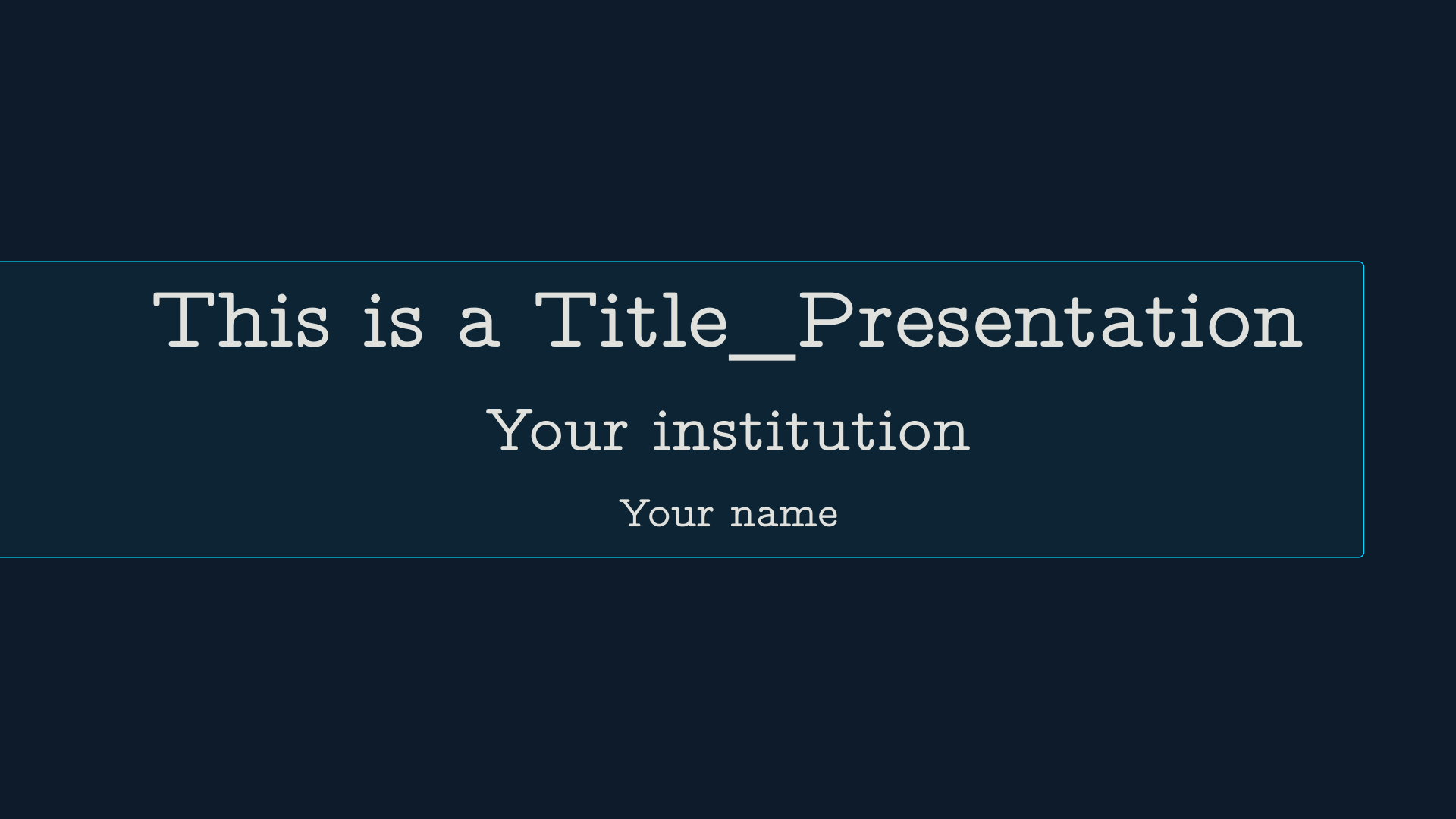
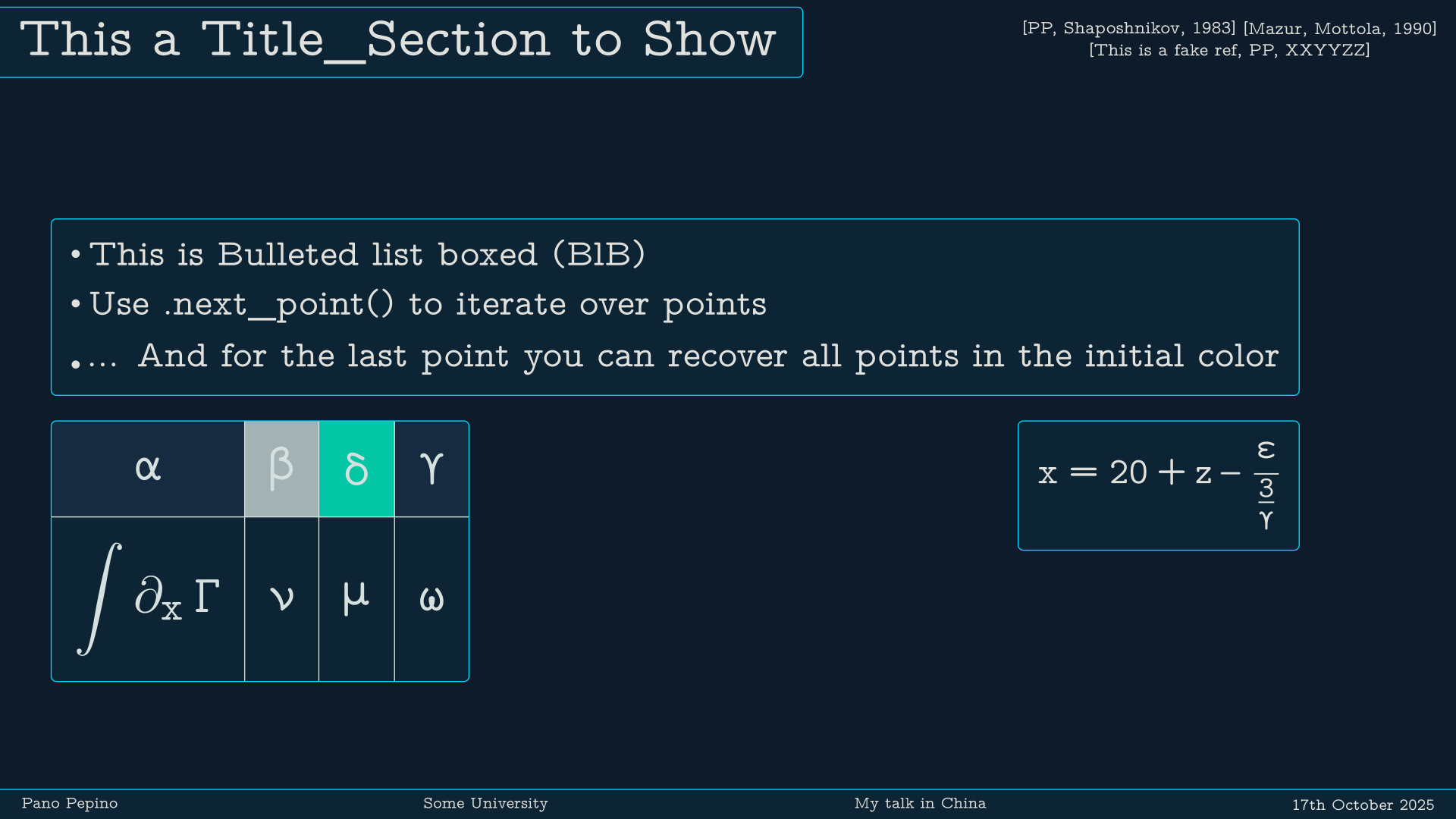
⚫ dark_energy - Dark theme with bright cyan accents
Template Gallery
🎨 default_template
🌿 green_mint

🧊 blue_ice
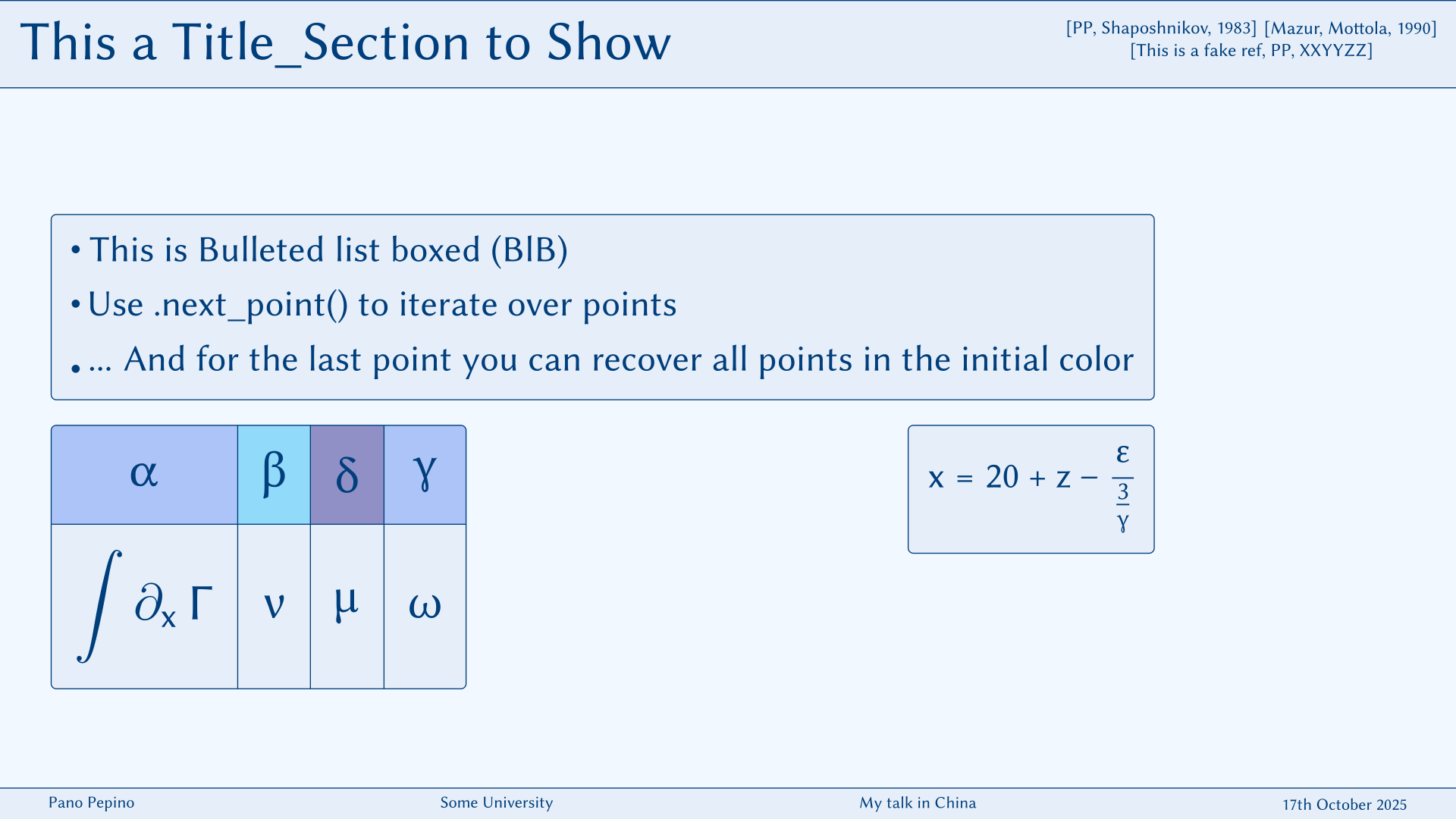
🍂 red_autumn
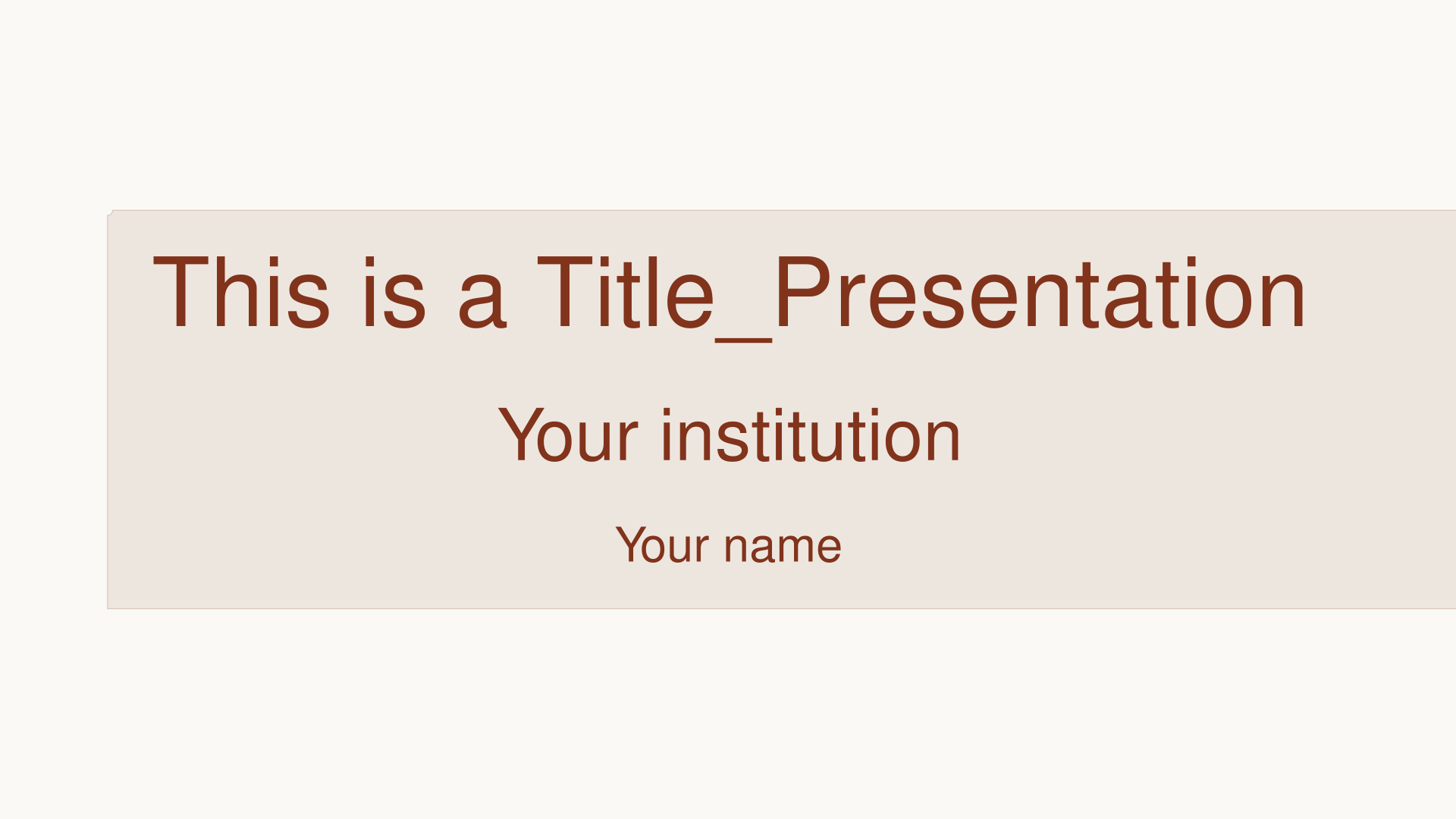
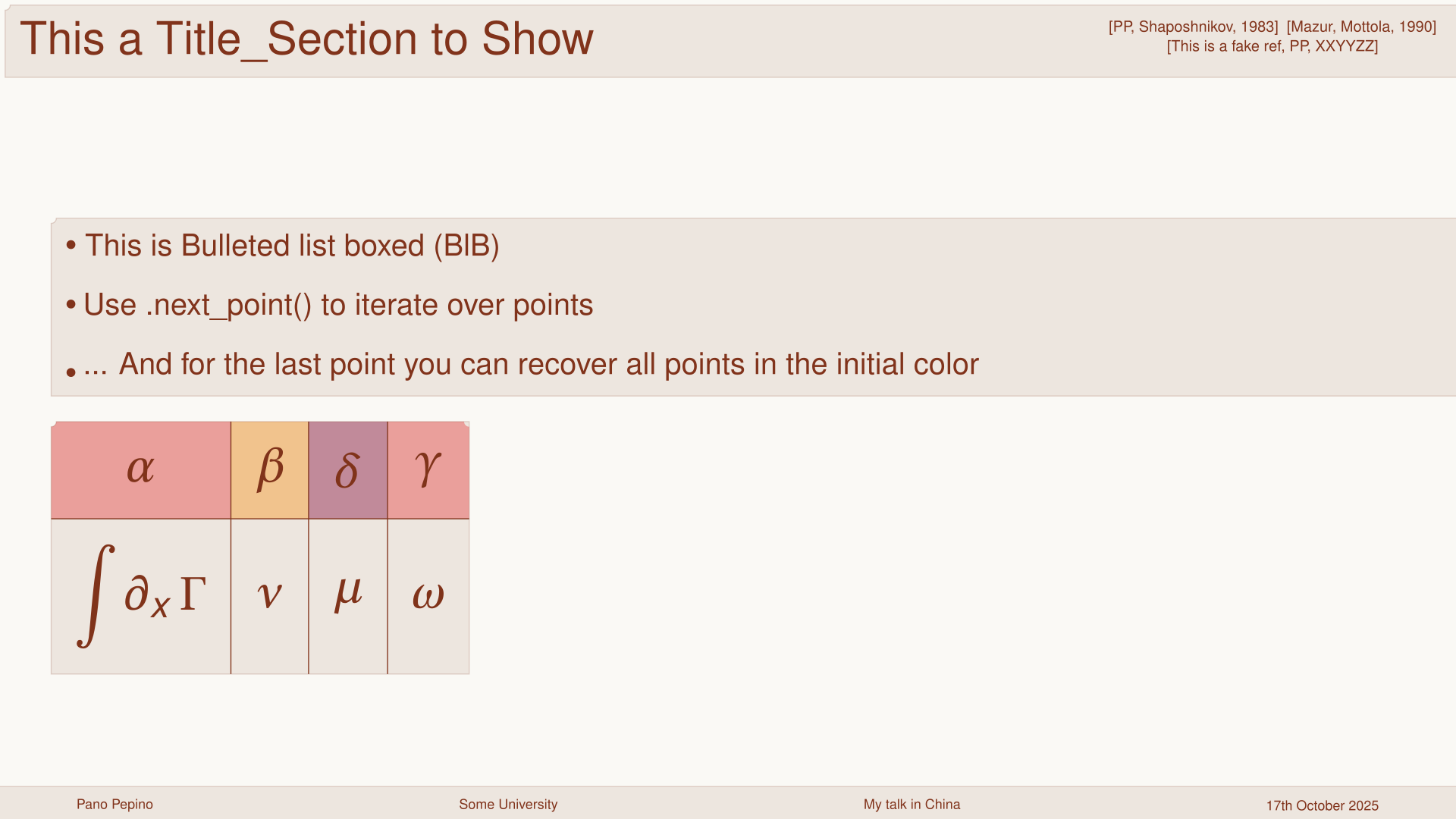
🔵 beamer_blue

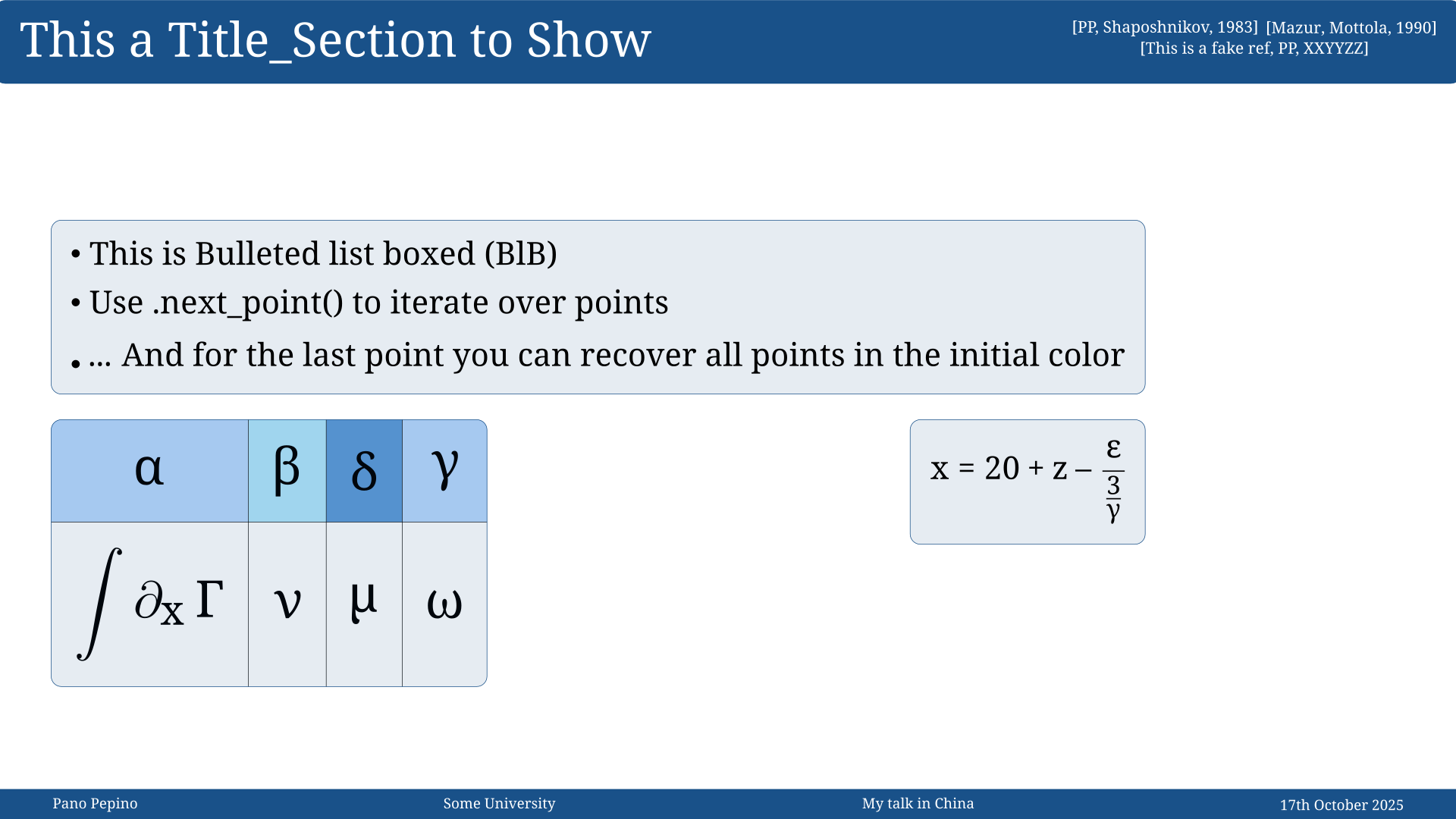
🟢 beamer_green

🌌 quantum_dusk

⚫ dark_energy
Step 1: Import and Setup
These templates can be called by importing them at the preamble of your file.py to compile with manim-slides:
from manim import *
from manim_slides import Slide
from manim_beanim import *

# Choose your template
import_template_beanim('default_template')

class Your_Fancy_Presentation(Slide):
    def construct(self):
        # Your presentation code here
        pass
Step 2: Define Your Slide Objects
Before building the presentation script, define all the objects (s, bullet points, equations, references) you’ll use. This makes your code more organized and easier to maintain.
Available Basic Object Types:
Title_Presentation() - with project name, affiliation, and author
Title_Section() - Section header that appears at the top-left corner
BlB() - Bulleted List Boxed with iterative animation support
Reference() - Citations and references (manual or from .bib file)
Equation() - LaTeX equations (manual or extracted from .tex file)
Note
You can define all objects in a separate objects.py file and import them into your main script for better organization.
Step 3: Build Your Presentation
Here’s a complete example showing how to create a simple presentation:
from manim import *
from manim_slides import Slide
from manim_beanim import *

import_template_beanim('default_template')

class Generic_Presentation(Slide):
def construct(self):

    # ============================================
    # SLIDE OBJECTS DEFINITION
    # ============================================

    title_slide = Title_Presentation(content=[title_of_project, affiliation, author])
    slide_0_points = BlB(the_title="About previous slide",
                         content=[
                             "Previous slide contained the Title of the Presentation",
                             "You call it with Title\\_Presentation() class",
                             "It has 3 entries: title of slides, your affiliation, your name"
                         ]).to_corner(LEFT)

    slide_1_title = Title_Section(content="This a Title\\_Section to Show")
    slide_1_points_1 = BlB(
        content=[
            "What you see upstairs is a Title\\_Section()",
            "It is defined so that it will always be placed to the UL corner"
        ]).to_corner(LEFT)
    slide_1_points_2 = BlB(
        content=[
            "This is Bulleted list boxed",
            "Its class is BlB()",
            "Use its inbuilt function .next\\_point() to iterate over points",
            "... And for the last point you can recover all points in the initial color",
        ]).to_corner(LEFT)

    ref_1 = Reference(dictionary="example_extract_ref_equation/dictionaries_extracted/refs.txt",
                      content=['ref_extract_1', 'ref_extract_2'])
    ref_2 = Reference(content='[Manually input ref, 2025]')
    refs = VGroup(ref_1, ref_2).arrange(DOWN, aligned_edge=LEFT).to_corner(UR)
    slide_2_points_1 = BlB(
        content=[
            "This is a reference/citation (Look up-right)",
            "Its class is Reference()",
            "You can manually input your references...",
            "... Or you can extract references from a .bib file and call them from a dictionary",
            "Check documentation/tools for more information on this"
        ]).to_corner(LEFT)

    eq_1 = Equation(
        content=["x^{2}+y^{2} = R^{2}, \quad", "e^{i \pi} = -1"],
        text_size=30,
        direction=DOWN,
    ).shift(1.5*UP)
    eq_2 = Equation(
        dictionary="example_extract_ref_equation/dictionaries_extracted/equations.txt",
        content="equation_extract_2",
    ).shift(1.5*UP)
    slide_3_points_1 = BlB(
        content=[
            "This is an equation",
            "Its class is Equation()",
            "You can manually input your equations...",
            "... Or you can extract equations from a .tex file and call them from a dictionary",
            "Check documentation/tools for more information on this"
        ]).to_corner(DOWN)

    slide_4_points = BlB(
        content=[
            "This is a table",
            "Similar to equations and refs, you can manually input or use dictionary",
            "This is a picture. It has two modes: Techno and Polaroid",
            "This is a simple post-it with a To-do list",
        ]).to_corner(UP)
    table_1 = Table([["1", "2"], ["3", "4"]]).to_corner(DOWN)
    photo_1 = Photo("figures/pedro.png", decorator_style="polaroid", caption="My Photo")
    photo_2 = Photo("figures/pedro.png", decorator_style="techno")
    photos = Group(photo_1, photo_2).arrange(RIGHT, buff=0.5).to_corner(DOWN)
    p_it = Post_It(to_dos=["Task 1", "Task 2"], text_color=BLACK, pin_color=BLACK).to_corner(DOWN)

    # ============================================
    # SLIDE OBJECTS DEFINITION
    # ============================================

    #
    self.play(FadeIn(title_slide))
    self.next_slide(notes='to slide about title')
    self.wipe(title_slide, slide_0_points)
    for _ in range(len(slide_0_points.content) + 1):
        self.next_slide()
        self.play(slide_0_points.next_point())

    # Slide 1
    self.next_slide(notes='to slide about section and bulleted list')
    self.wipe(slide_0_points, slide_1_title)
    self.play(FadeIn(slide_1_points_1))


    # Slide 2
    self.next_slide(notes='to slide about section and bulleted list')
    self.play(ReplacementTransform(slide_1_points_1, slide_1_points_2))
    for _ in range(len(slide_1_points_2.content) + 2):
        self.next_slide()
        self.play(slide_1_points_2.next_point())

    # Slide 3
    self.next_slide(notes='to slide about refs')
    self.wipe(Group(slide_1_title, slide_1_points_2), refs)
    self.play(Write(slide_2_points_1))

    # Slide 4
    self.next_slide(notes='to slide about equations')
    self.wipe(Group(slide_2_points_1, refs), Group(eq_1, slide_3_points_1))
    for _ in range(len(slide_3_points_1.content)-1):
        self.next_slide()
        self.play(slide_3_points_1.next_point())
    self.next_slide()
    self.play(ReplacementTransform(eq_1, eq_2))
    self.play(slide_3_points_1.next_point())
    self.next_slide()
    self.play(slide_3_points_1.next_point())

    # Slide 5
    self.next_slide(notes="to minor things", auto_next=True)
    self.wipe(Group(slide_3_points_1, eq_2), Group(slide_4_points))
    self.next_slide()
    self.play(slide_4_points.next_point(), FadeIn(table_1))
    self.next_slide()
    self.play(slide_4_points.next_point())
    self.next_slide()
    self.wipe(table_1, photos)
    self.play(slide_4_points.next_point())
    self.next_slide()
    self.wipe(photos, p_it)
    self.play(slide_4_points.next_point())
    self.next_slide()
    self.play(FadeOut(slide_4_points, p_it))
Step 4: Render Your Presentation
Render the slides using the manim-slides command:
manim-slides render file_name.py Generic_Presentation
After rendering, you can present your slides with:
manim-slides present Generic_Presentation
Final Result
Here’s what the final presentation looks like:
Next Steps
Now that you’ve created your first presentation with Beanim, explore more advanced features:
🔧 Learn about extracting equations and references from files in the Documentation section
🎨 Experiment with different templates and customize your slides
💡 Visit the Manim-Slides documentation for additional animation techniques
Tip
Pro tip: Start simple and gradually add complexity. Define all your objects first, then build the animation script step by step.