Quick Guide
This guide will walk you through the basics of String Cosmo Communication. Like Beanim, the package for creating Beamer-like slides, we’ll start with the available templates and colors, then build a presentation showcasing string theory and cosmology concepts.
Available Templates
String Cosmo comes equipped with nine different templates to homogenize the look of your slides:
🌅 cosmic_dawn - Warm sunrise colors for early universe scenarios
🌌 quantum_dusk - Elegant purple-lavender theme for quantum effects
⚫ dark_energy - Dark theme with bright cyan accents
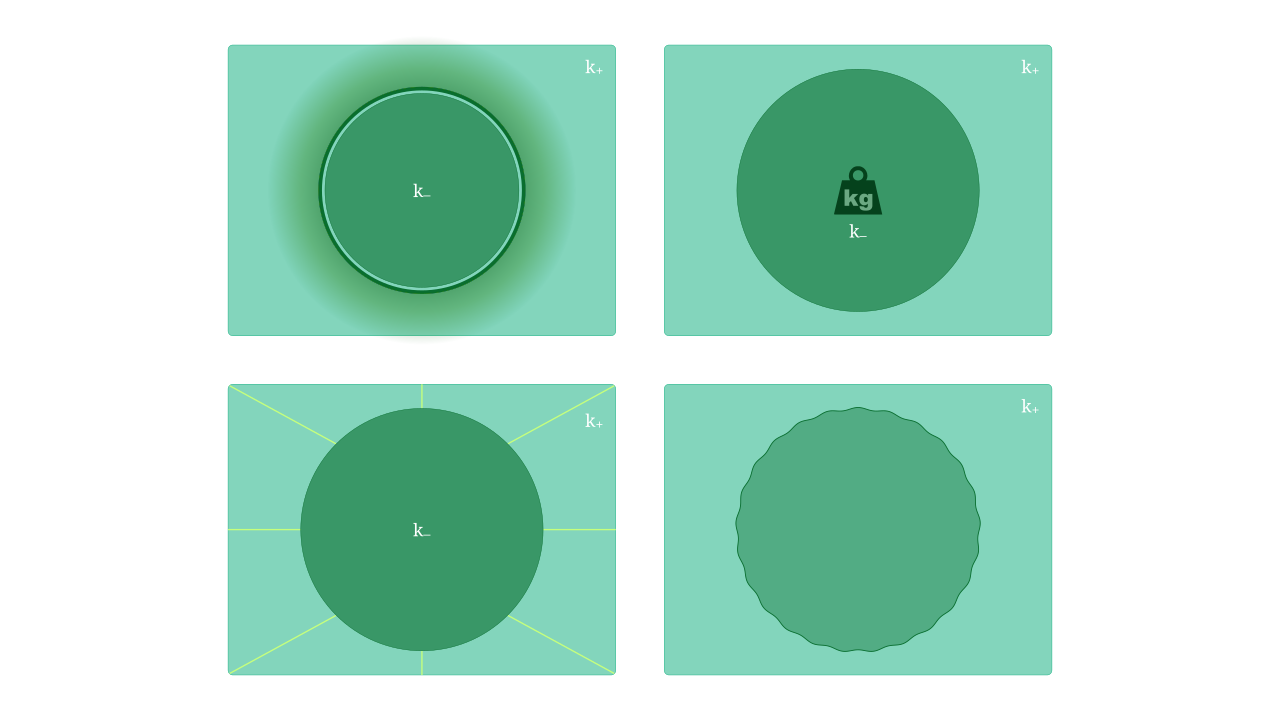
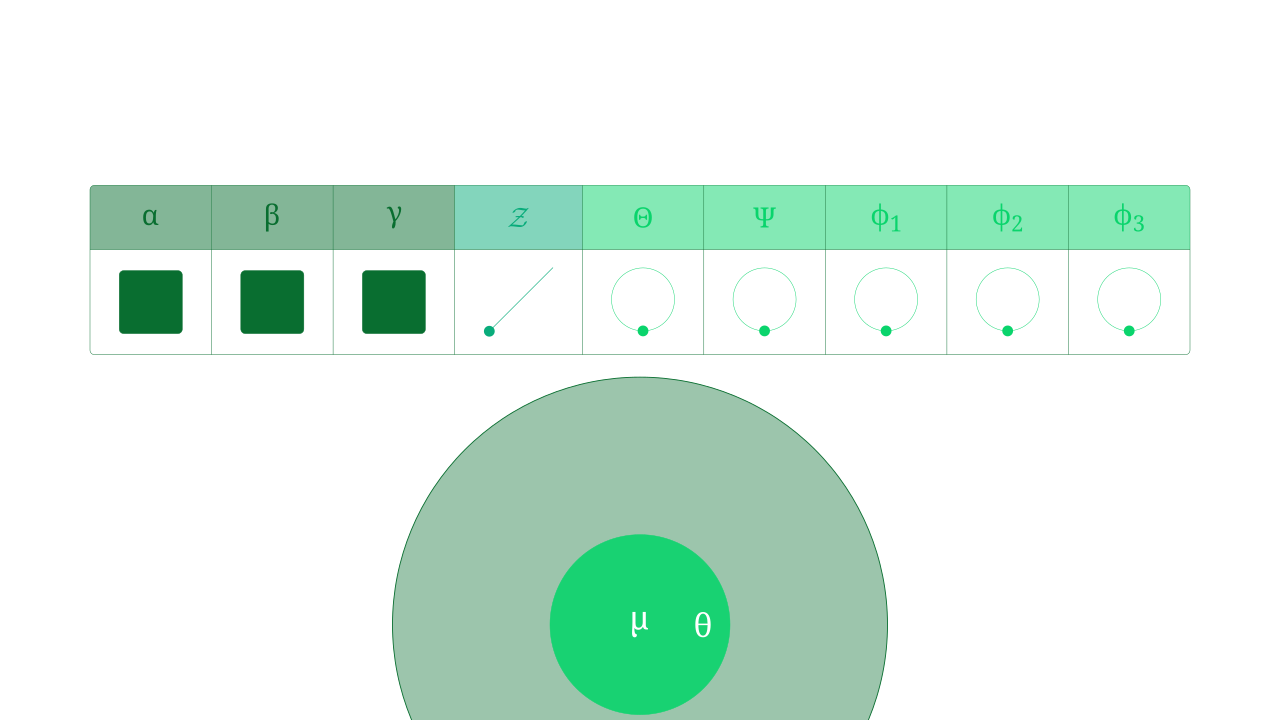
🌿 green_mint - Fresh mint green theme
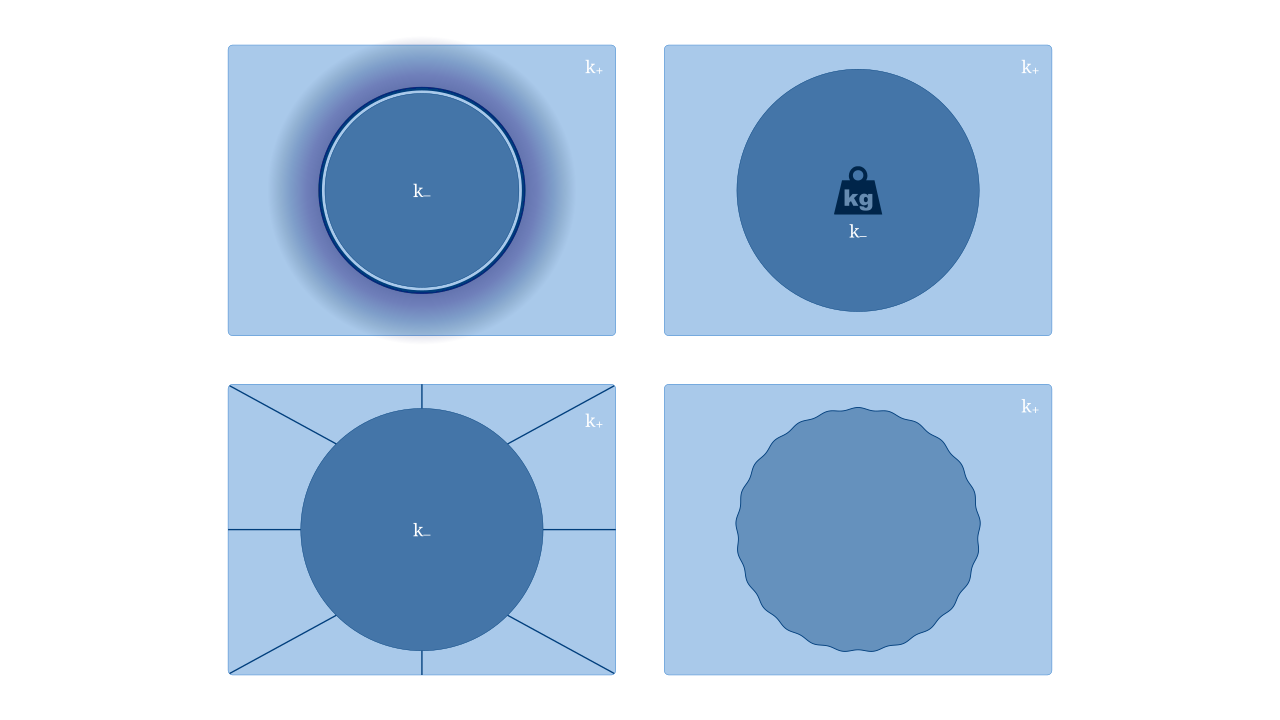
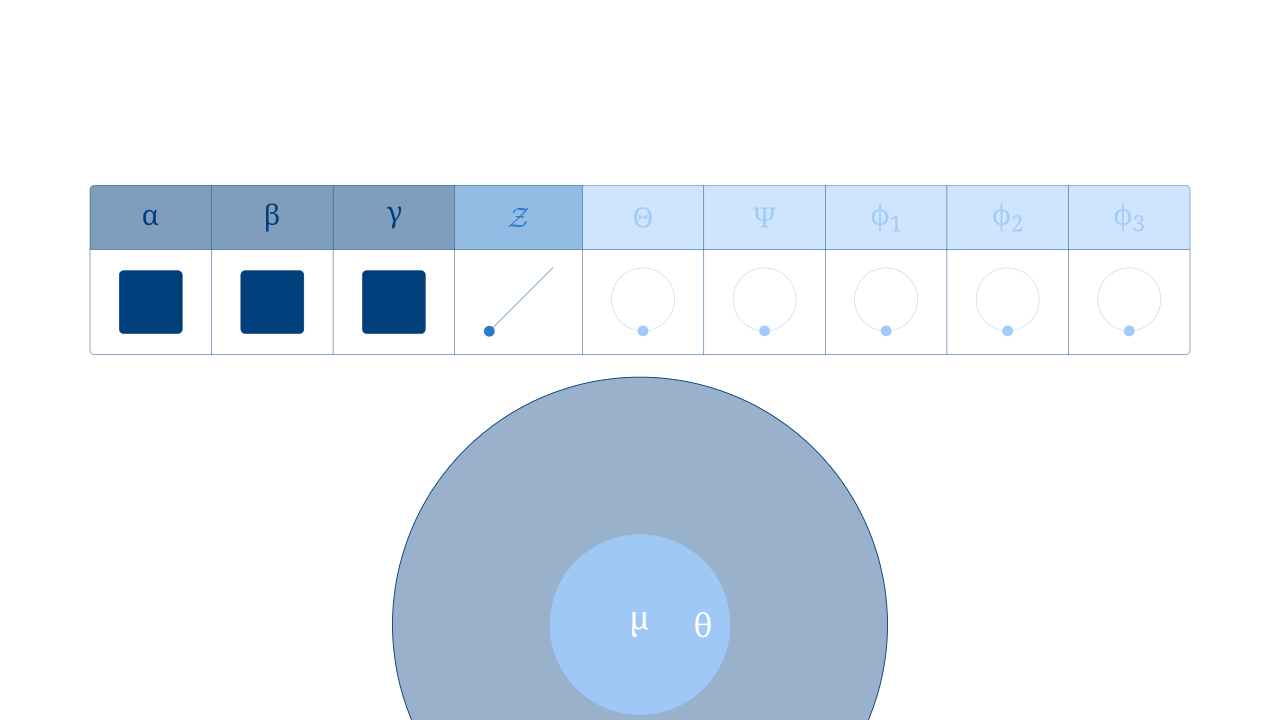
🧊 blue_ice - Cool blue color scheme
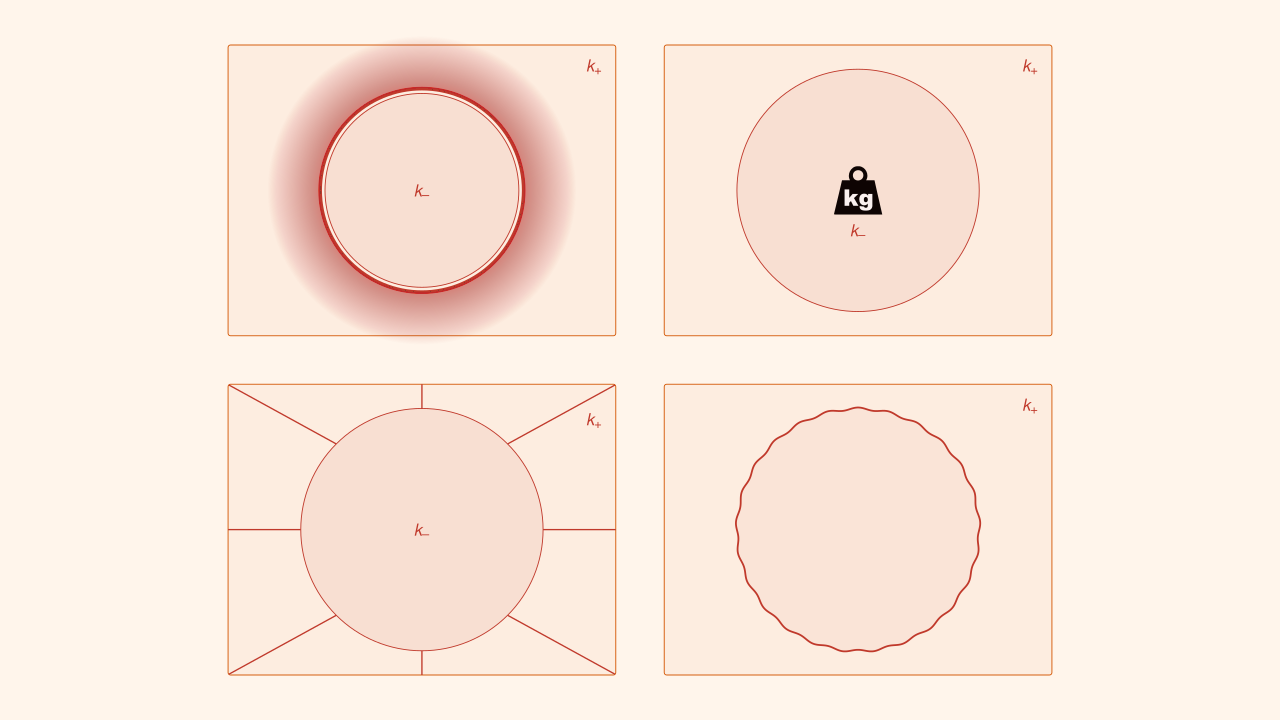
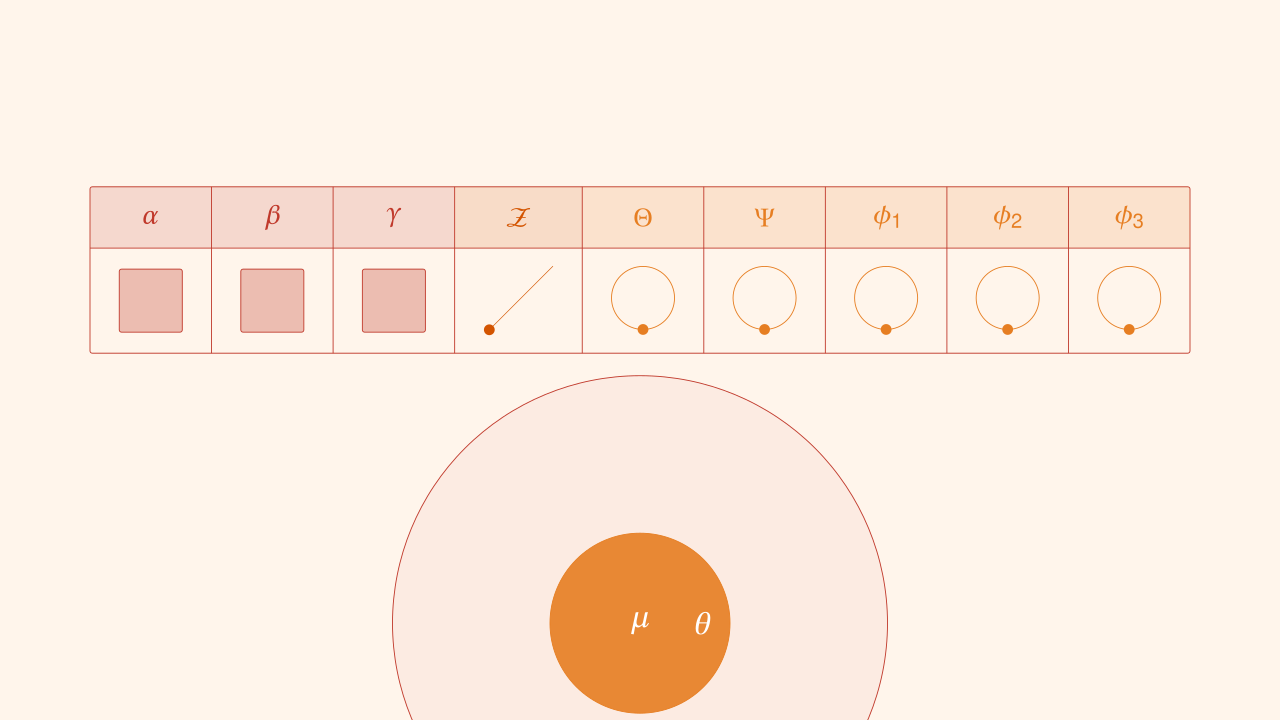
🍂 red_autumn - Warm autumn colors
🔵 beamer_blue - Classic Beamer style in blue
🟢 beamer_green - Classic Beamer style in green
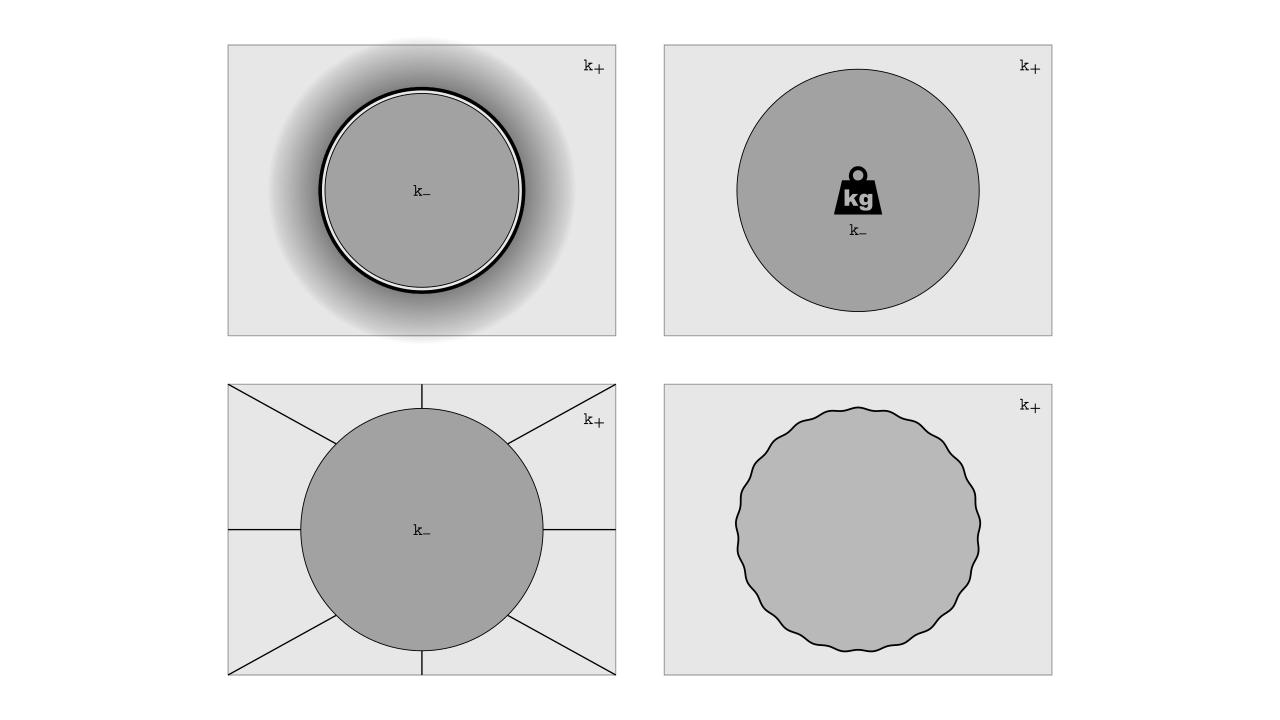
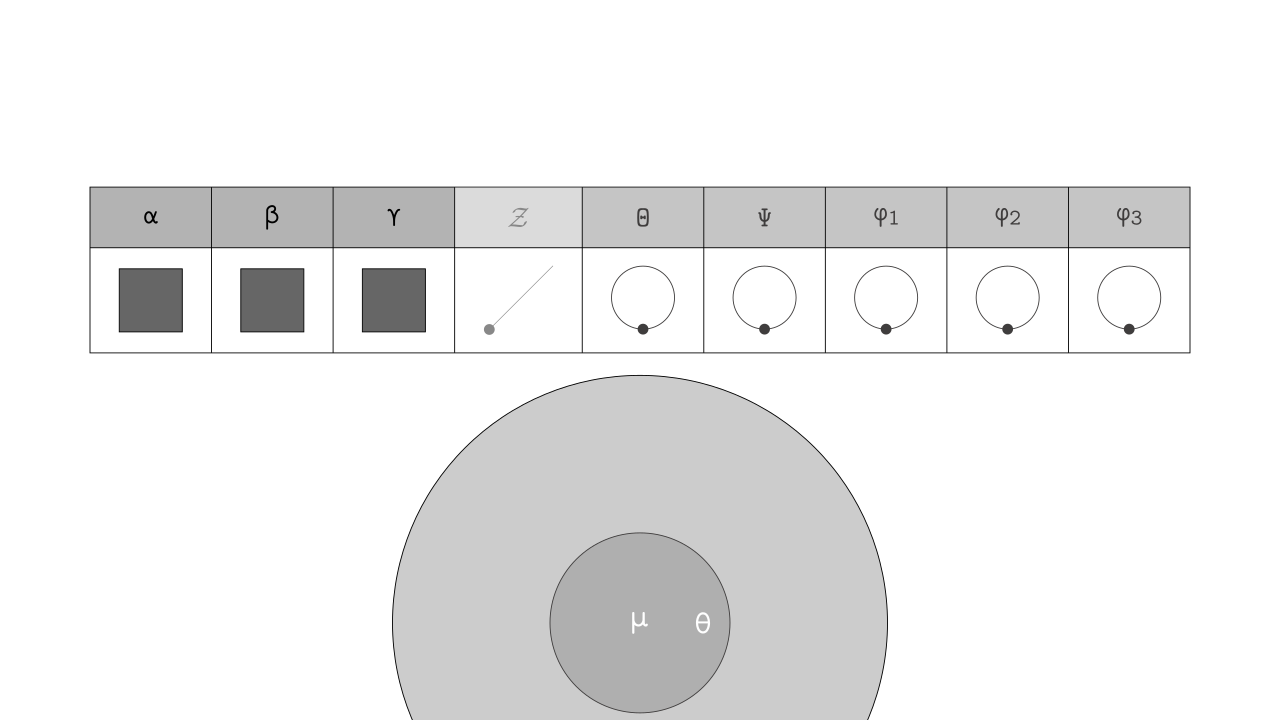
🎨 default_template - Clean black and white design
Template Gallery
🌌 quantum_dusk
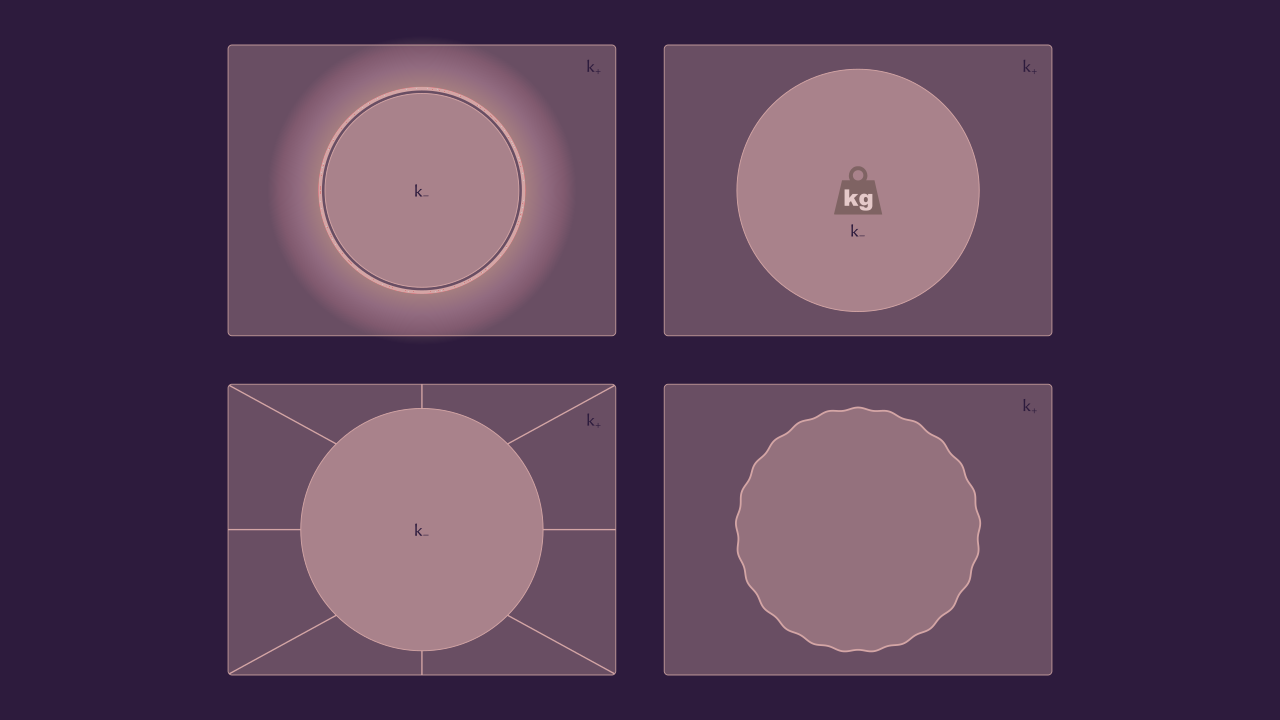
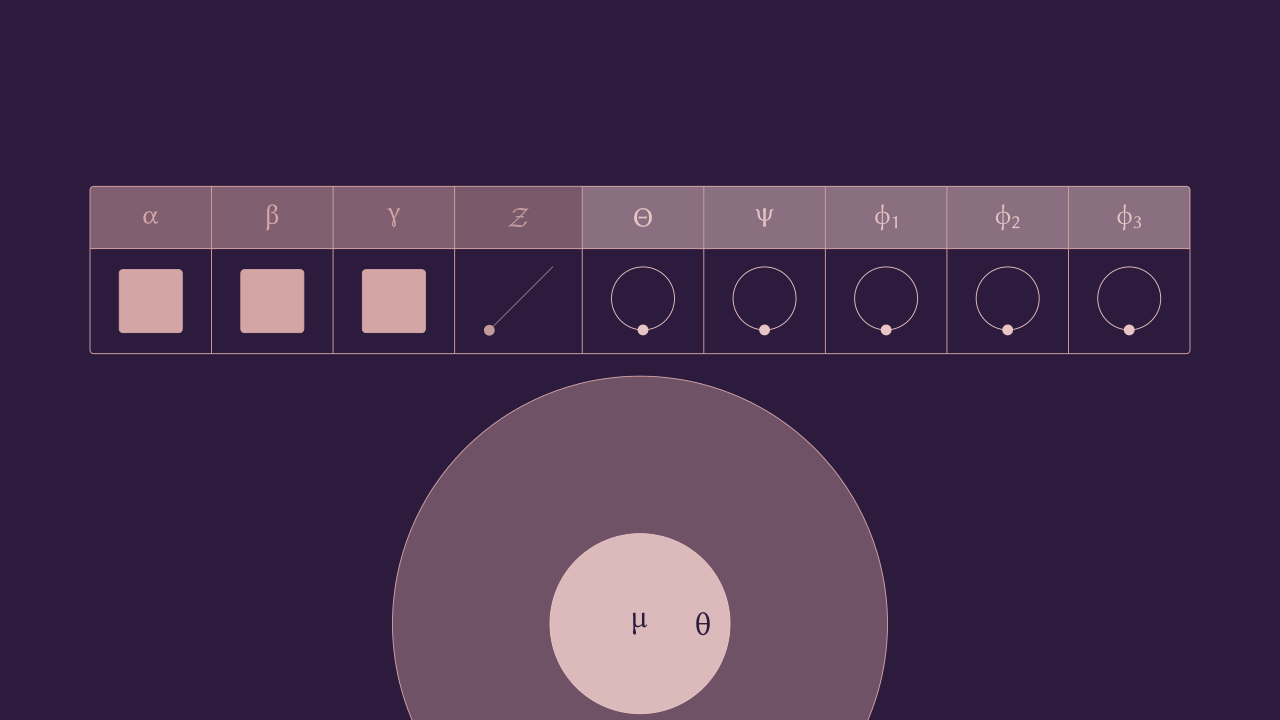
⚫ dark_energy
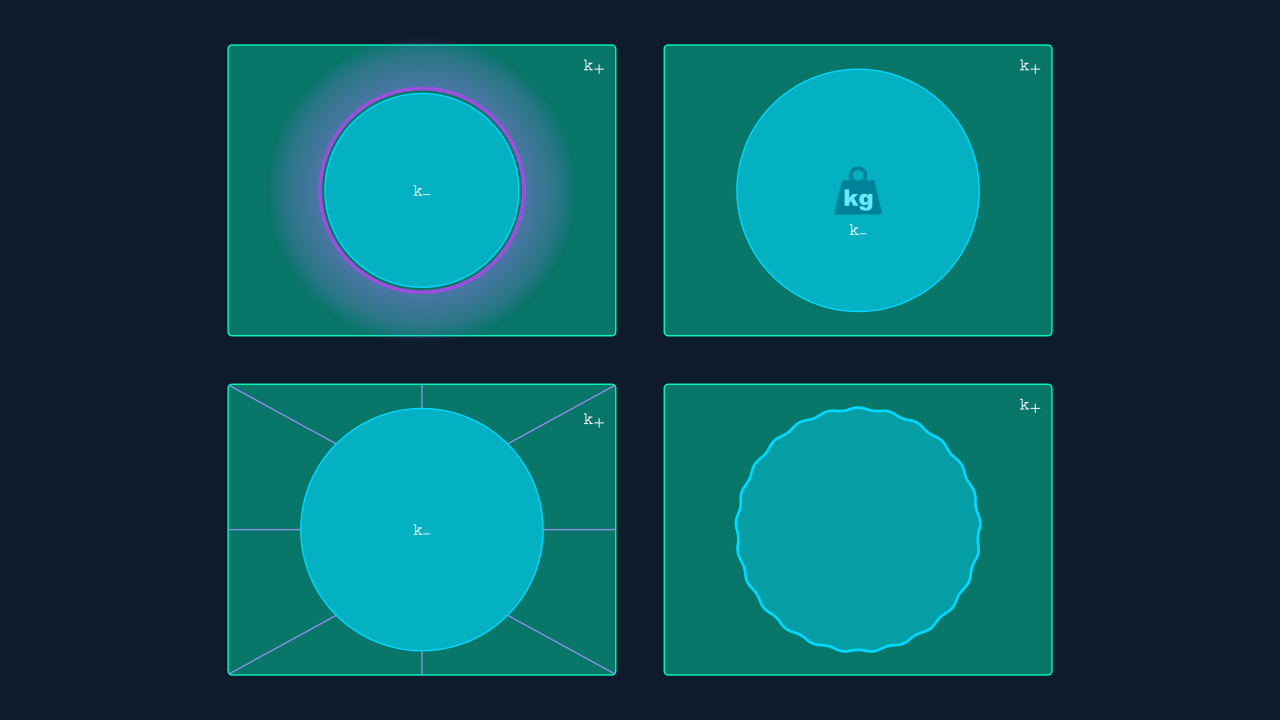
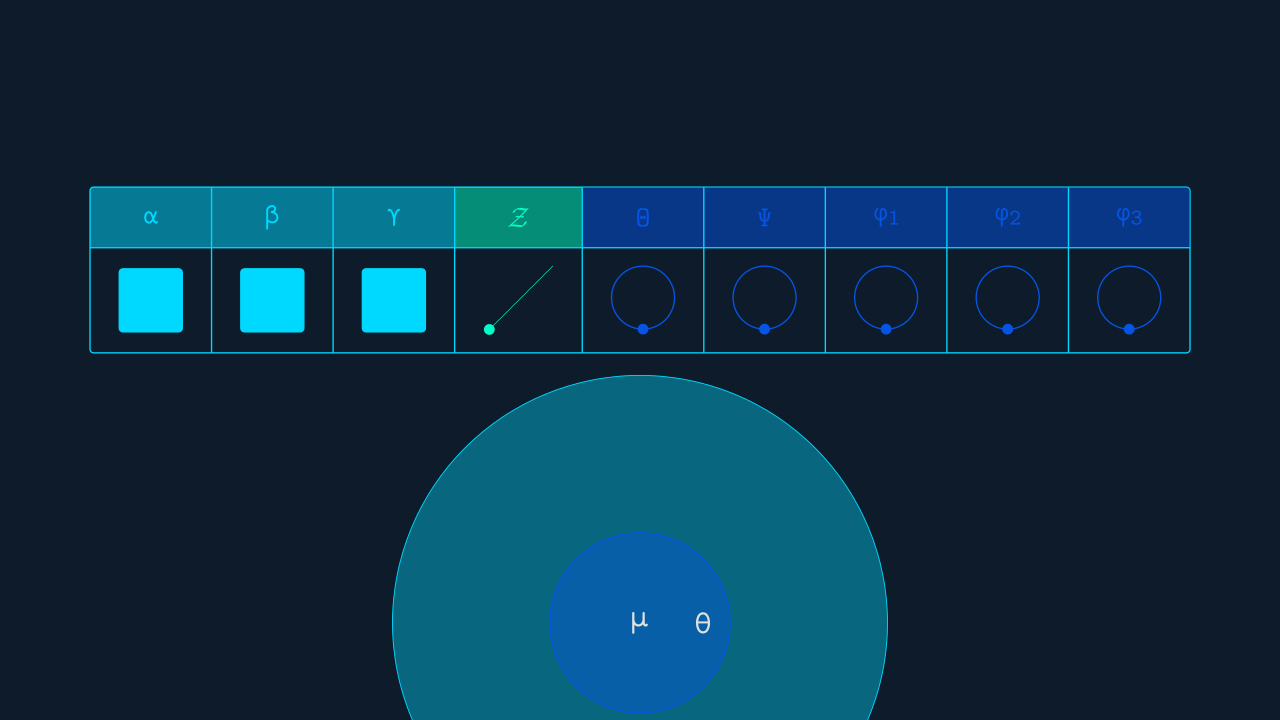
🌿 green_mint
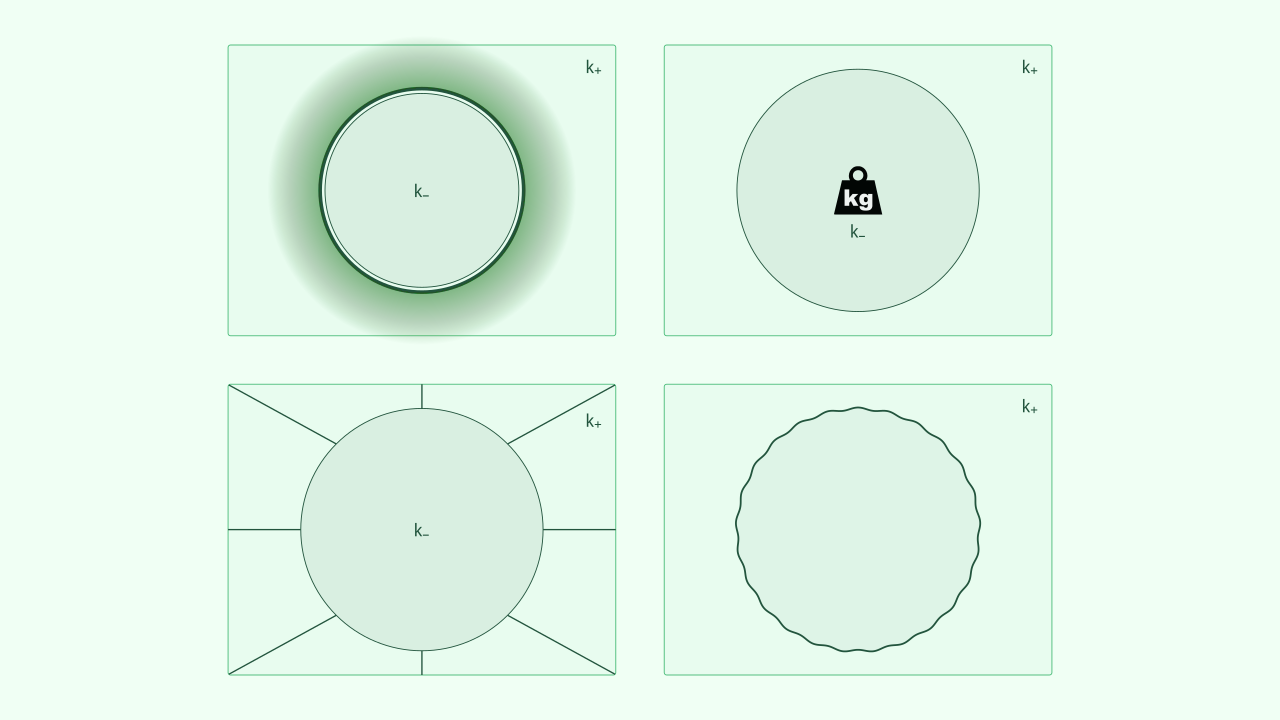
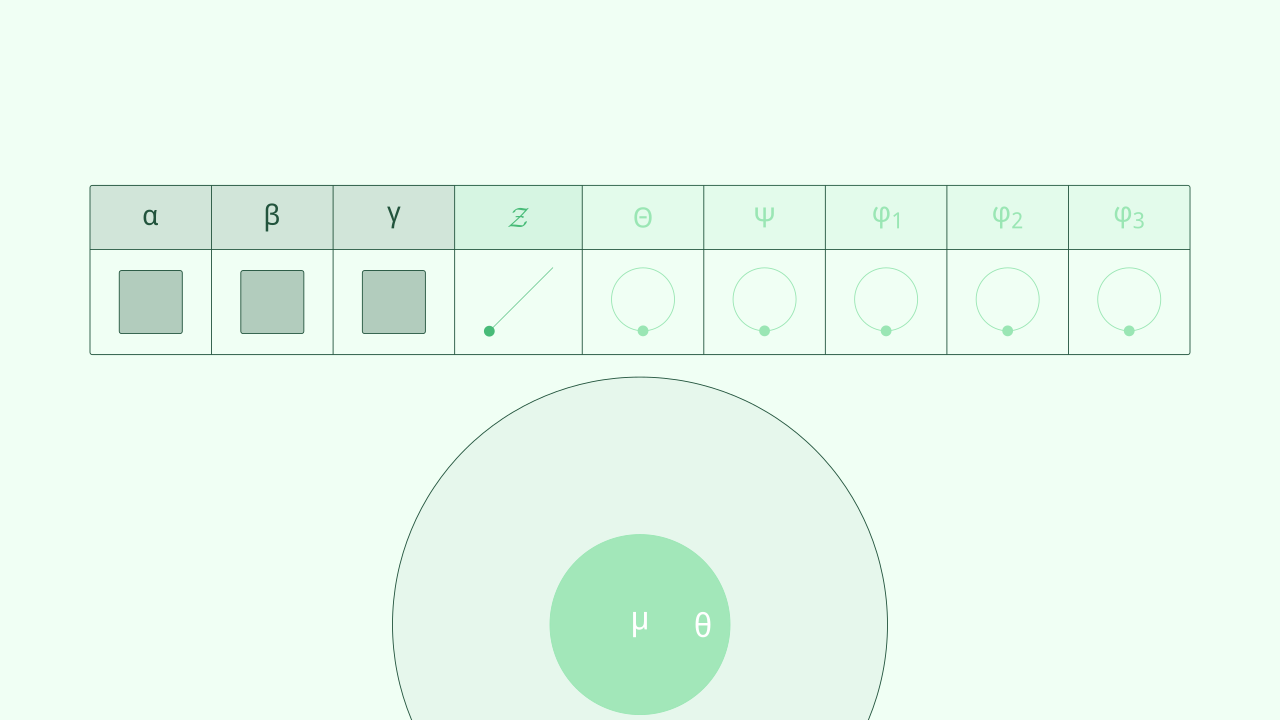
🧊 blue_ice
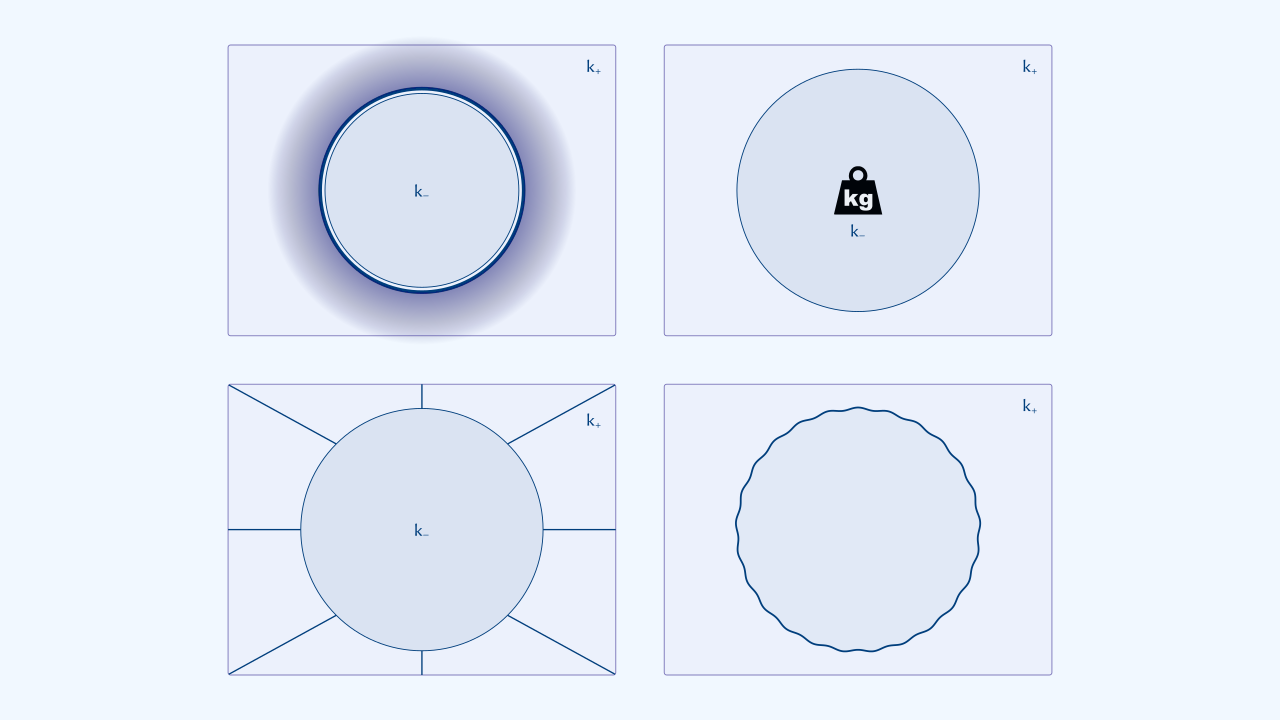
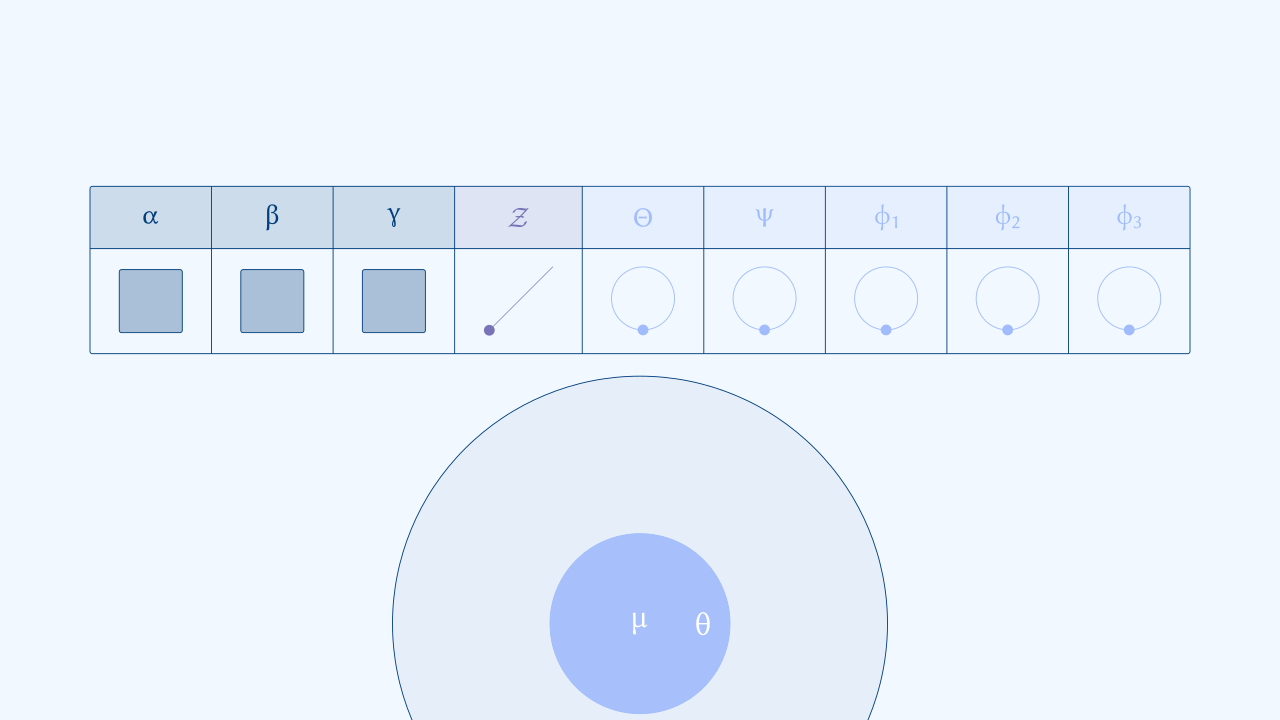
🍂 red_autumn
🔵 beamer_blue
🟢 beamer_green
🎨 default_template
Step 1: Import and Setup
These templates can be called by importing them at the preamble of your file.py to work with Manim:
from manim import *
from manim_string_cosmo import *

# Choose your template
import_template_string_cosmo('cosmic_dawn')

class String_Cosmology_Presentation(Scene):
    def construct(self):
        # Your presentation code here
        pass
Step 2: Define Your Objects
Before building the animation script, define all the objects you’ll use. String Cosmo provides specialized objects for visualizing string theory and braneworld scenarios. For example.
Bubble() - Vacuum bubble universes with various content types:
bubble_type="empty"- Empty bubblebubble_type="radiation"- Radiation-filled bubblebubble_type="em"- Electromagnetic field contentbubble_type="strings"- String attaching to the branebubble_type="GW"- Gravitational waves
Black_Hole() - Higher-dimensional black holes:
bh_type="spinning"- Rotating 5D black hole from 10D backgroundbh_type="fragmentation"- AdS Fragmentation
AdS_Jc() - Anti-de Sitter junction configurations:
vacua_type="DB"- Dark Bubble configurationvacua_type="RS"- Randall-Sundrum configuration
More objects - To find in the Documentation <https://github.com/PanoPepino/string_cosmo_communication>
Note
You can define all objects in a separate objects.py file and import them into your main script for better organization.
Step 3: Build Your String Cosmology Presentation
Here’s a complete example showing how to create a presentation about bubble nucleation and braneworld scenarios:
from manim import *
from manim_string_cosmo import *
from manim_slides import *

import_template_string_cosmo('dark_energy')


class Bubble_Cosmology_Presentation(Slide):
    def construct(self):

        # ============================================
        # Object Definition
        # ============================================

        bubble_empty = Bubble(bubble_type="em")
        bubble_radiation = Bubble(bubble_type="radiation")
        bubble_strings = Bubble(bubble_type="strings")

        bubbles = VGroup(bubble_empty, bubble_radiation, bubble_strings)\
        .arrange(RIGHT, buff=1).scale_to_fit_width(config.frame_width-1)

        bh_spinning = Black_Hole(bh_type="spinning")
        bh_fragment = Black_Hole(bh_type="fragmentation")

        black_holes = VGroup(bh_spinning, bh_fragment).arrange(RIGHT, buff=10).scale_to_fit_width(config.frame_width-5)

        ads_db = AdS_Jc(vacua_type="DB")
        ads_rs = AdS_Jc(vacua_type="RS")

        ads_configs = VGroup(ads_db, ads_rs)\
        .arrange(RIGHT, aligned_edge=DOWN, buff=1)\
        .scale_to_fit_width(config.   frame_width-1)

        # ============================================
        # SLIDE 1: BUBBLE ANIMATION
        # ============================================

        self.play(AnimationGroup(
            *[bubble.fade_in_bulk() for bubble in bubbles]
        ))
        self.next_slide(loop=True)
        self.play(AnimationGroup(
            *[bubble.create_bubble() for bubble in bubbles]
        ))
        self.wait()
        self.next_slide(loop=True)
        self.play(AnimationGroup(
            *[bubble.expand_bubble() for bubble in bubbles]
        ))
        self.wait()

        # ============================================
        # SLIDE 2: BLACK HOLE ANIMATION
        # ============================================

        self.next_slide(auto_next=True)
        self.play(FadeOut(bubbles))
        self.wait()
        self.play(FadeIn(black_holes))
        self.wait()

        self.next_slide(loop=True)
        self.play(AnimationGroup(
            *[bh.nucleate() for bh in black_holes]
        ))
        self.wait()
        self.next_slide(loop=True)
        self.play(AnimationGroup(
            *[bh.expand() for bh in black_holes]
        ))

        # ============================================
        # SLIDE 3: AdS JUNCTION CONFIGURATIONS
        # ============================================

        self.next_slide(auto_next=True)
        self.play(FadeOut(black_holes))
        self.wait()
        self.play(AnimationGroup(
            *[config.fade_in() for config in ads_configs]
        ))

        self.next_slide(loop=True)
        self.play(ads_rs.show_symmetry(rt=3))
        self.wait()
        self.play(ads_rs.restore_symmetry())
        self.wait()

        self.next_slide(loop=True)
        self.play(AnimationGroup(
            *[config.fade_in_arrow() for config in ads_configs]
        ))
        self.wait()
        self.play(AnimationGroup(
            ads_db.show_n_vector_db(rt=3),
            ads_rs.show_n_vector_rs(rt=3)
        ))
        self.wait()

        self.next_slide()
        self.play(FadeOut(ads_configs))
Step 4: Render Your Animation
Render the animation using the standard manim command:
manim -pql file_name.py Bubble_Cosmology_Presentation
Options:
-p- Play the video after rendering-ql- Quality low (faster rendering for testing)-qh- Quality high (for final presentations)
For presentations with manim-slides integration, you will need to add self.next_slide() stops and render as discussed in Manim Slides documentation
manim-slides render file_name.py Bubble_Cosmology_Presentation
manim-slides present Bubble_Cosmology_Presentation
The final result should look like:
Next Steps
Now that you’ve created your first string cosmology animation, explore more advanced features:
🔧 Learn about all object types and their parameters in the manim_string_cosmo section
🎨 Experiment with different templates to match your presentation style
💡 Create your own sketches and animations to improve this package!
Tip
Pro tip: Start with simple single-object animations to understand the physics, then build up to complex multi-object scenarios. The template system ensures visual consistency across all your animations.